

Claude Code CC Switch Configuration Guide
¶ 1. Obtain API Key
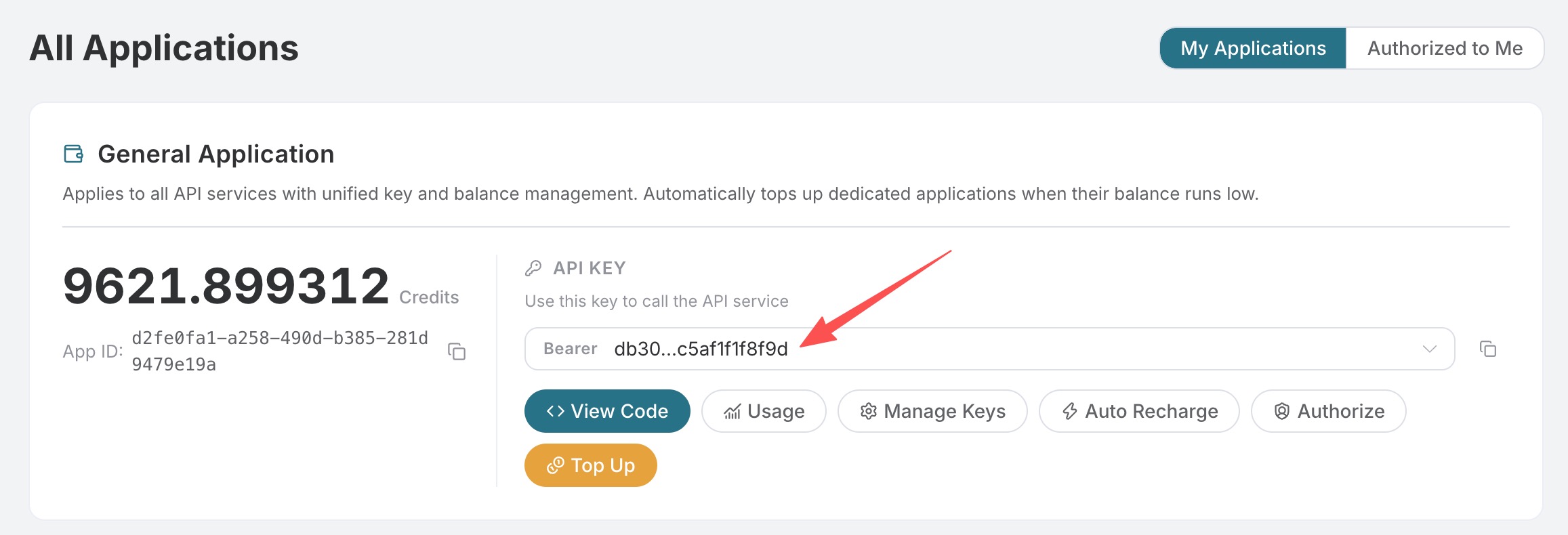
Open the AI 聚合|元宪智能 application list, access the available applications, and copy the API Key.
¶ 2. Install CC Switch
Download from CC Switch Releases, it can also run on macOS:
brew install --cask cc-switch
¶ 3. Add Provider
Open CC Switch, select Claude Code → Add Provider → Custom, and fill in:
| Field | Value |
|---|---|
| Name | Ace Data Cloud |
| Base URL | https://api.yxai-tech.top |
| API Key | The API Key just copied |
| API Format | Anthropic Messages |
If you need to use the JSON editor, configure it as:
{
  "env": {
    "ANTHROPIC_BASE_URL": "https://api.yxai-tech.top",
    "ANTHROPIC_AUTH_TOKEN": "{token}"
  }
}
CC Switch will write the configuration into the user settings of Claude Code. Do not save the real Key in the team repository, and do not keep the old ANTHROPIC_API_KEY at the same time.
¶ 4. Enable and Verify
After saving, enable AI 聚合|元宪智能, and reopen Claude Code. Send a simple read-only task and check the calls in Usage History. If the old configuration is still used after switching, completely exit Claude Code and CC Switch and try again.